
Google Ads for Beginners: A Simple Guide to Getting Started
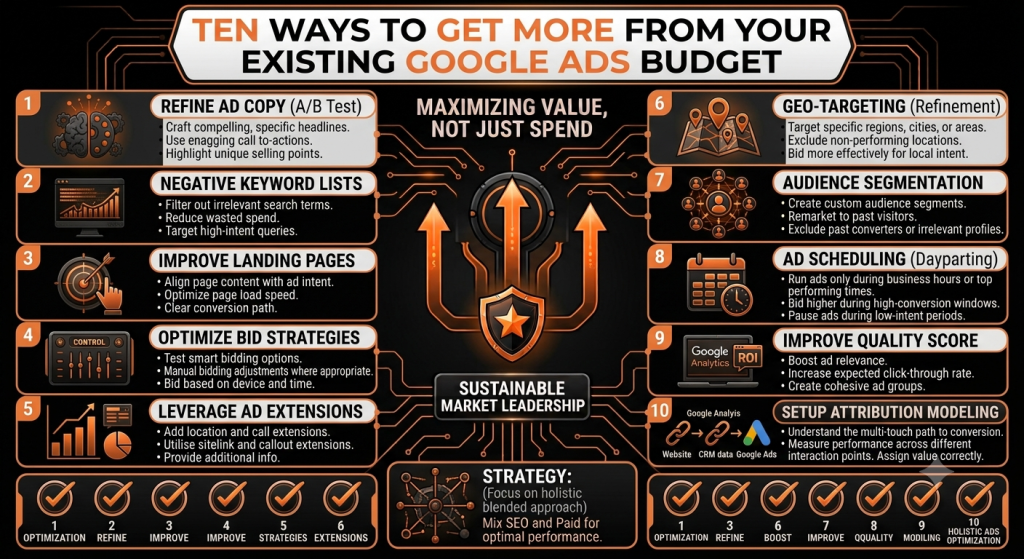
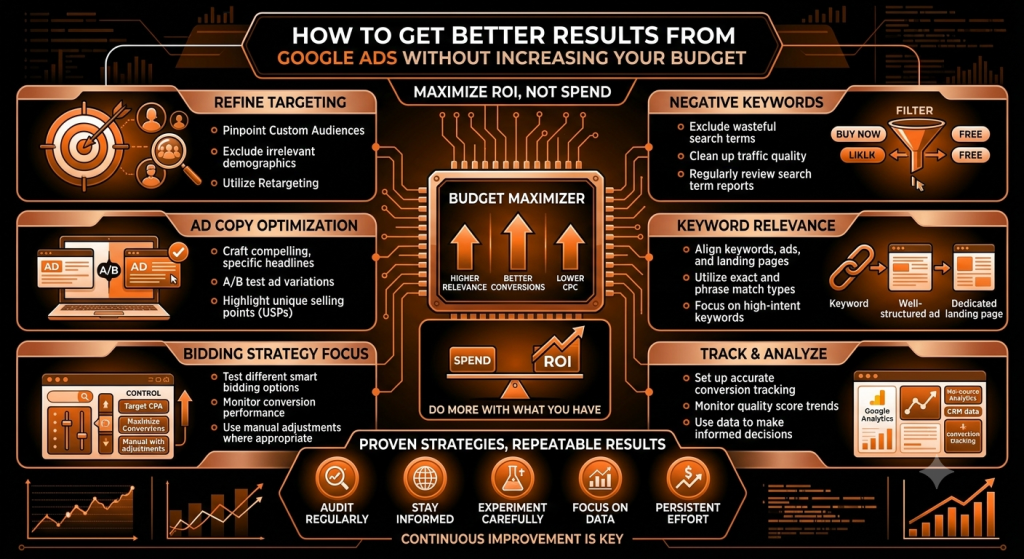
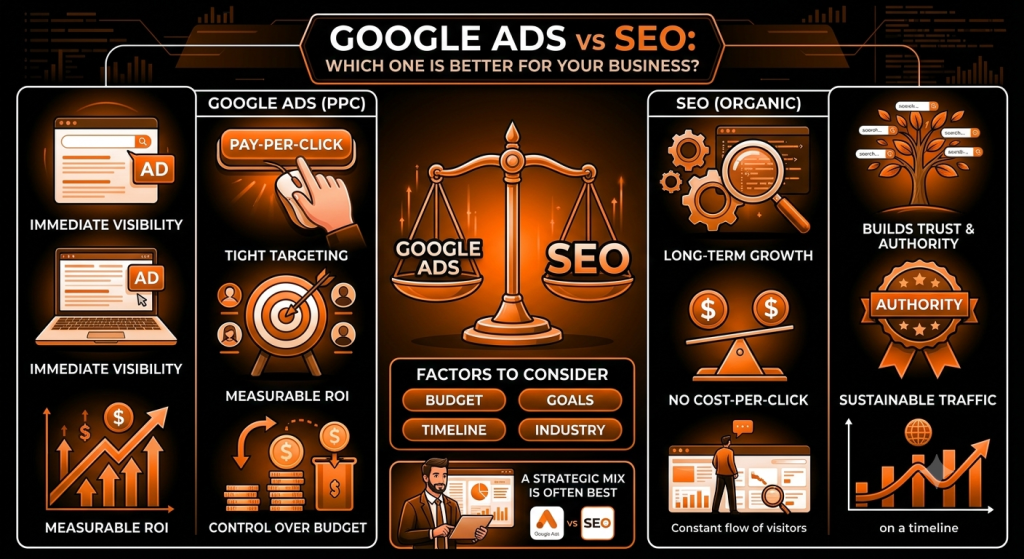
Google Ads for Beginners: A Simple Guide to Getting Started Open a Google Ads account for the first time and it can feel like stepping into a cockpit — campaign types, bidding strategies, match types, conversion goals, all asking for a decision before you’ve even written your first ad. It’s no surprise a lot of beginners either freeze or just click through the defaults and hope for the best. The good news is that the core idea behind Google Ads is actually simple, even if the interface isn’t. This guide walks through it step by step — what Google Ads is, how it works, and how to set up a first campaign without getting lost in features you don’t need yet. Quick Answer: Google Ads is Google’s advertising platform that lets businesses promote products and services across eligible Google properties and partner placements. Businesses choose a goal, target relevant keywords or audiences, set a budget, and generally pay when someone interacts with their ad — with exact targeting options and formats depending on the campaign type chosen. Click here What Is Google Ads? Google Ads is paid advertising — businesses pay to appear in front of people, rather than earning that visibility for free the way organic search results do. Ads can appear on Google’s search results, and depending on the campaign type, across other Google properties and partner placements as well. The core difference is simple: organic search visibility is earned through SEO and isn’t paid for directly, while paid search visibility is bought, typically with advertisers paying when someone interacts with their ad in a qualifying way. A bakery might show up organically for “best sourdough recipe” after months of content work, while a Google Ads campaign for “bakery near me” could start showing an ad the same day it’s launched. How Does Google Ads Work? At a basic level, the process looks like this: a business creates a campaign, chooses a goal, selects relevant targeting, creates ads, and sets a budget and bidding approach. When someone’s search or browsing matches an opportunity, Google evaluates eligible ads and may show one to that person. If they click or take another desired action, the business measures the result and adjusts the campaign accordingly. Behind this sits something often called the ad auction — but it’s not simply a matter of the highest bidder automatically winning every time. Relevance, ad quality, your bid, and the context of the search all play a role in which ads actually get shown and how they perform. Why Do Businesses Use Google Ads? Google Ads lets businesses reach people who are actively searching, often faster than waiting for organic rankings to build. It offers real control over targeting specific audiences or locations, setting and adjusting a budget, and measuring exactly what’s happening with the campaign. It’s useful for generating leads, driving sales, promoting specific products or services, and quickly testing different offers and messaging. It’s not automatically the right fit for every business, though — it tends to work best when there’s genuine search demand for what you offer and a website ready to convert the traffic it sends. Google Ads vs SEO: What’s the Difference? Factor Google Ads SEO Traffic Paid Organic Speed Can provide visibility quickly Usually takes longer Cost model Advertising spend Investment in SEO work Control More direct control over campaigns Less direct control over rankings Long-term value Depends on ongoing campaigns Can build lasting organic visibility Best for Paid visibility, targeted campaigns Long-term organic growth Both can be genuinely useful, and neither is automatically better for every business — many businesses end up using both for different reasons. What You Need Before Starting Google Ads Before opening an account, it helps to have a clear business goal, a defined target audience, a website or relevant destination page ready to receive traffic, a clear product or service to promote, a realistic budget, defined conversion goals, and at least a basic sense of what your customers are actually searching for. Sending paid traffic to an unprepared website — slow, unclear, or missing a way to contact you — tends to waste budget regardless of how well the campaign itself is built. Step 1: Create Your Google Ads Account Setting up an account generally involves signing up with a Google account, providing basic business information, and working through Google’s setup flow. The exact interface and steps can change over time, so it’s worth checking Google’s current official setup guide rather than relying on older instructions. Whatever the current flow looks like, take time to review the account settings carefully — location, language, and billing details in particular — before launching your first campaign. Step 2: Choose the Right Campaign Goal Google Ads asks you to pick a goal early on — common options include leads, sales, website traffic, and awareness or reach, with app-related goals available for relevant businesses. The right goal depends on your business: a local service business often cares most about leads, an ecommerce store typically focuses on sales, and a newer brand might genuinely benefit from an awareness-focused goal depending on its specific objective. No single goal is universally correct — pick the one that actually matches what you’re trying to achieve. Step 3: Choose a Google Ads Campaign Type Common campaign types include Search, Display, Shopping, Video, App, and Performance Max, each generally designed for a different purpose — Search ads target people actively typing queries, Display ads show visual ads across a network of sites, Shopping ads showcase products, Video ads run on video platforms, and so on. For beginners, Search campaigns are often easier to understand at first, since they’re built around capturing existing search demand from people already looking for something specific. That doesn’t mean Search is always the best choice — an ecommerce store might get more value from Shopping ads, for instance. Campaign types and their features can change, so check Google’s current documentation before deciding. Step 4: Choose the Right